How Long Does a BMW Map Update Take? Full Step-by-Step
A BMW map update takes 30–40 minutes in the car, plus the download and USB prep. Here's the full timing breakdown and the step-by-step install.
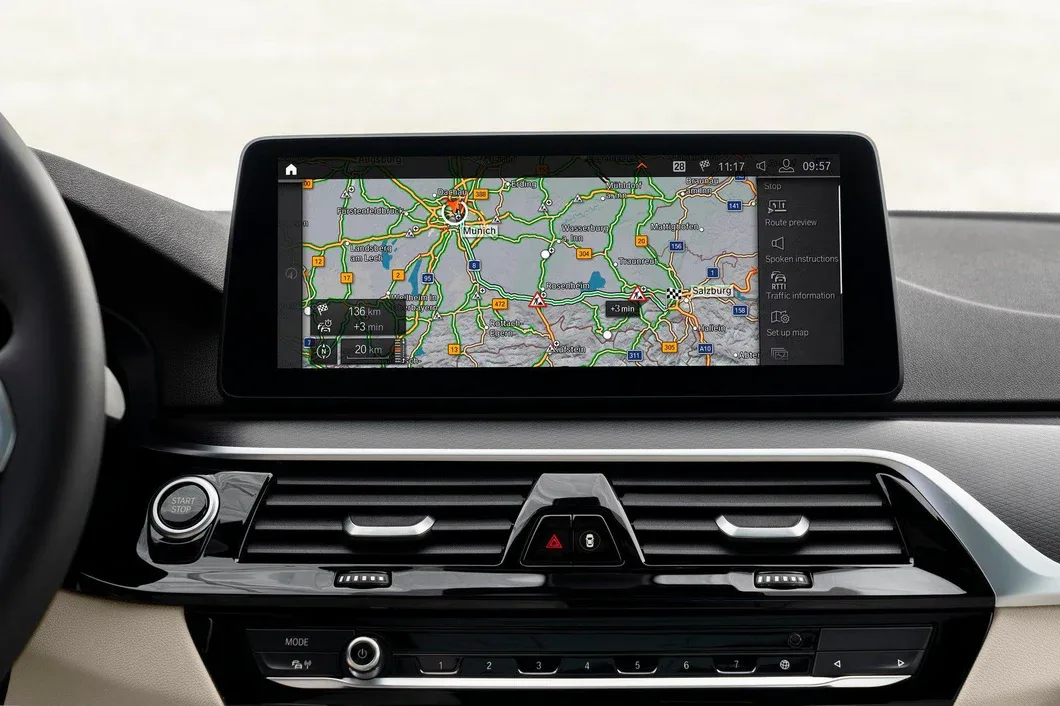
A BMW map update happens in three stages: download the files, prep the USB, install in the car. Total time depends mostly on your internet speed (map files range from 5 GB to 35 GB depending on version) and the in-car install time for your specific iDrive — typically 30 to 40 minutes. Here's the full breakdown and the step-by-step.
The three stages — typical timing
- 1. Download map files — depends on your internet speed; files are 5 GB to 35 GB by version
- 2. USB prep (extract + format + copy) — 20–40 minutes (mostly driven by USB write speed)
- 3. In-car install — 30–40 minutes
The BMW Map Download Manager we ship with every full map update handles stages 1 and 2 — it pulls the files, extracts them, formats your USB and copies everything into the correct folder structure. It runs on Windows 10 or newer and macOS 13 or newer. If your internet drops mid-download, the Download Manager auto-resumes from where it left off, so you don't lose hours to a flaky connection.
Stage 1 — Receiving your order
Within hours of ordering, your delivery email arrives with:
- Your FSC code (or FSC file, depending on your iDrive — see BMW FSC Code Explained)
- The BMW Map Download Manager application — runs on Windows 10+ or macOS 13+
- The map files for the version + region you ordered (delivered through the Download Manager)
Run the Download Manager on your computer to start Stage 2.
Stage 2 — Download + USB prep
You'll need a USB stick sized for your map version — anywhere from 16 GB to 64 GB. Smaller versions fit on smaller sticks; the Download Manager tells you exactly what size you need when you run it.
The Download Manager:
- Downloads the map archive (auto-resumes if your connection drops)
- Extracts the files
- Formats your USB stick to the correct file system for your iDrive
- Copies the files into the right folder structure
- Tells you when the USB is ready to take to the car
Total time on the PC side: 20 to 40 minutes after the download finishes. USB write speed is the biggest variable.
Stage 3 — Installing in the car
This is the part you actually have to be present for. 30 to 40 minutes from USB-in to system-rebooted on most updates.
- Sit in your BMW with the engine on. You can drive normally during the install — in fact it's the better option, because the alternator keeps the battery topped up across the 30–40 minutes. If you'd rather stay parked, keep the engine running so the battery doesn't drain. If you do shut down mid-install, the update pauses and continues the next time you start the car (with the USB still plugged in).
- Insert the USB stick into the correct port for your map version:
- Glovebox USB — PREMIUM, MOTION, MOVE
- Centre console USB — NEXT, ROUTE, WAY, EVO ID4, EVO ID5/6, JOY, LIVE
- Wait ~20 seconds for the iDrive to detect the new map and prompt you with a pop-up.
- Select "Start update" using the iDrive controller.
- Enter the 20-character FSC code when prompted (only applies to older iDrives that take a typed code — newer ones with EntryEvo/EntryNav2, EVO ID5/6 and MGU read the FSC file directly off the USB, no typing). The code excludes digits 0 and 1 — what looks like a zero is the letter O, what looks like a one is the letter I.
- Leave the USB plugged in. The install runs automatically and the iDrive reboots when it's done.
You'll see progress percentages on the iDrive throughout. The install is interruption-tolerant — if you finish your drive before the update finishes, lock the car and walk away; the update pauses and resumes when you next start the car, as long as the USB stays plugged in.
FAQ
Can I drive during the update?
Yes — and it's actually preferable. Driving keeps the alternator charging the battery across the 30–40 minute install. Sitting stationary works too, but you'll need to keep the engine running so the battery doesn't drain.
Can I turn the engine off and resume later?
Yes. The update pauses when the engine shuts off and resumes the next time you start the car, as long as the USB stays plugged in. You don't have to complete the install in one sitting.
Can I lock the car and walk away?
Yes. The update pauses, then continues the next time the car is used — USB plugged in throughout.
What if I enter the wrong FSC code?
The iDrive prompts you to re-enter. You don't lose the file or get locked out. Most "wrong code" errors are typing mistakes — see BMW FSC Code Explained for the common O/0 and I/1 mix-ups.
Does this work for MINI too?
Yes. The procedure is identical on MINI iDrive systems running the same map versions.
How to start
- Find your map version using our BMW VIN compatibility checker or the iDrive procedure.
- Order the matching update on BMW & MINI Map Updates.
- Run the Download Manager from your delivery email — Windows or Mac.
- Sit in your BMW (or drive) for 30–40 minutes, follow the on-screen prompts, drive away with new maps.