BMW Apple CarPlay Activation: USB Coding or Cable Coding
Activate Apple CarPlay on EVO ID5/6 and EntryEvo/EntryNav2 BMW iDrives. USB for older firmware, cable for newer — both methods take around 5 minutes.
Wireless Apple CarPlay can be activated on two BMW iDrive families: EVO ID5/ID6 and EntryEvo / EntryNav2. There are two activation methods — USB coding and ENET cable coding — and which one your car needs is set by the iDrive's firmware version. Both methods take roughly 5 minutes inside the car. Here's the rule and what each option needs.
The two activation methods
- USB coding — copy the activation files to a FAT32-formatted USB stick, plug it into the car, follow the iDrive prompt, done.
- Cable coding — connect an ENET coding cable (OBD-to-Ethernet) from the OBD port to a laptop, run the Feature Installer application, the activation pushes to the car.
Both flows take about 5 minutes once everything is set up. USB needs a stick; cable needs a cable + a laptop. Neither is harder than the other — it just depends which one your firmware accepts.
How to find your iDrive firmware version
Sit in your BMW (or MINI — same procedure):
- Open the Navigation Maps.
- Press the Options button.
- Go to Settings.
- Navigate to Position & Version History.
- Select Version Information.
Your firmware will display as something like NBTevo_P183621. The first letter after the head-unit name is what determines the activation method.
The rule by firmware
- Versions starting with O, N or M → either USB or cable works
- Versions starting with P, Q, R, S, U, V, W, X or Y → cable coding only
The cut-off corresponds (for EVO ID5/6) to firmware release 18-11: anything older accepts USB, anything 18-11 or newer requires cable. EntryEvo / EntryNav2 head units have all shipped past the cut-off, so they're cable-only across the board.
What we sell — by head unit
- EVO ID5 / ID6 — older firmware: Apple CarPlay Activation — EVO ID5/6 USB Coding
- EVO ID5 / ID6 — firmware 18-11 and newer: Apple CarPlay Activation — EVO ID5/6 Cable Coding
- EntryEvo / EntryNav2: Apple CarPlay Activation — EntryEvo / EntryNav2 Cable Coding
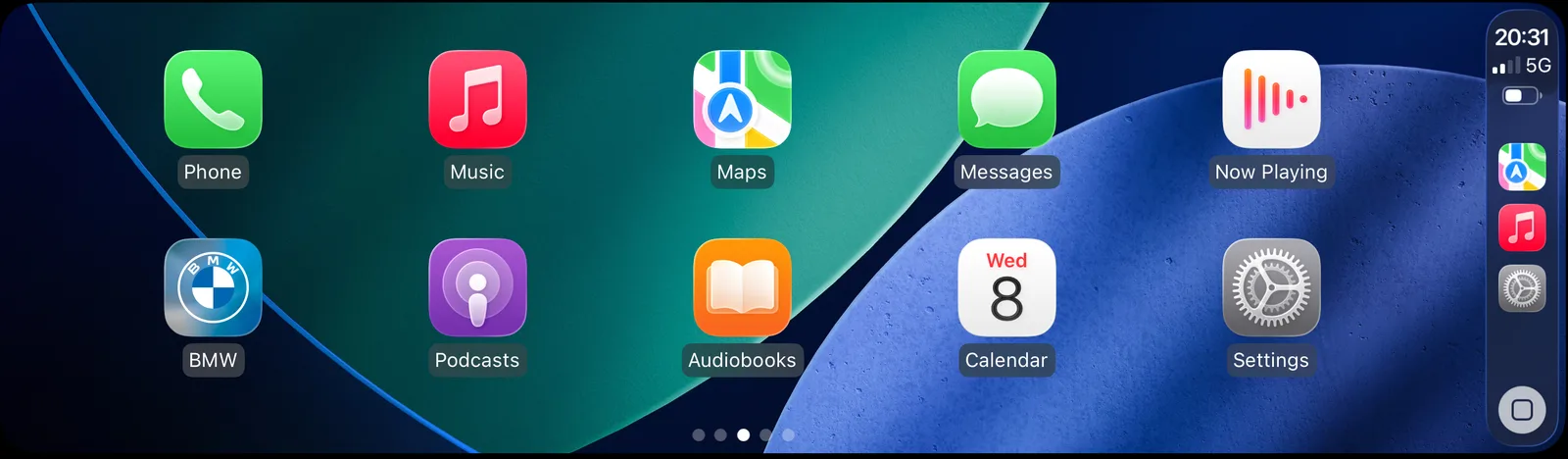
By default, CarPlay on these head units runs in BMW's split-screen layout — your apps share the iDrive display with BMW's standard side widgets. The Fullscreen add-on flips that so CarPlay takes over the entire display.
The fullscreen add-on has two requirements: CarPlay must already be active on the iDrive (or be ordered alongside the activation), and the iDrive must be on a compatible firmware:
- EVO ID5 / ID6 — same firmware matrix as activation: USB-coded fullscreen for firmware older than 18-11; cable-coded fullscreen for 18-11 and newer.
- EntryEvo / EntryNav2 — requires firmware 07-20 or newer. Cable coding only.
If you're not sure which firmware your car is on, the BMW VIN compatibility checker identifies your head unit and firmware automatically.
What you need for USB coding
- A laptop or PC to format the USB stick (FAT32) and copy the activation files
- A USB flash drive, 8 GB or larger
- 5 minutes inside the car to plug in and confirm
The laptop is only needed at the prep stage — it doesn't go in the car. Once the USB is ready, the rest is keys-in-ignition and follow-the-prompt.
What you need for cable coding
- An ENET coding cable (OBD-to-Ethernet adapter)
- A laptop running Windows 10 or newer, or macOS 13 or newer — the Feature Installer application supports both
- Engine running during the procedure
- Antivirus software disabled while the Feature Installer runs
The laptop talks to the iDrive over the OBD port via the ENET cable. The Feature Installer pushes the activation files to your specific VIN, and the iDrive confirms once CarPlay is enabled.
Wi-Fi: port vs antenna
Apple CarPlay on BMW is wireless — your iPhone pairs with the iDrive's built-in Wi-Fi. For that to work, two things have to be in place:
- The iDrive must have a Wi-Fi port.
- The car must have a Wi-Fi antenna fitted.
These are different things and we treat them separately:
- EVO ID5 / ID6 — the Wi-Fi port is built in as standard on every unit. The antenna isn't always fitted from factory — if the car was specced without the wireless package, the antenna won't be there. The activation will still complete; pairing just won't work until the antenna is installed (a small plug-and-play job at the back of the iDrive).
- EntryEvo / EntryNav2 — the Wi-Fi port isn't on every unit. Our VIN compatibility checker tells you whether your specific car has the port; the antenna is the same separate question as above.
We can confirm the port from your VIN. We can't tell you about the antenna — that's something to check visually or with a workshop before ordering if you're unsure.
What's included when you order from FSCMAPCODES
Whichever method your iDrive needs, your activation includes:
- Permanent Apple CarPlay activation tied to your VIN — once enabled, it stays
- Step-by-step instructions written for non-coders
- Email support if you hit a snag during the procedure
For cable orders the instructions cover laptop prep, ENET cable connection and the Feature Installer run. For USB orders they cover formatting and file placement on the stick.
How to order
- Find your firmware via the iDrive procedure above — or skip the menu and paste your VIN into our BMW VIN compatibility checker, which identifies head unit + firmware automatically.
- Pick the right activation: USB-coded if you're on O/N/M firmware (or EVO ID5/6 older than 18-11), cable-coded otherwise.
- Browse Apple CarPlay activations and pick the variant matching your iDrive.
- Enter your VIN at checkout — the activation is generated for that specific car.